

 WinDeveloper O365 Mailer FREE for 1 Year
Index
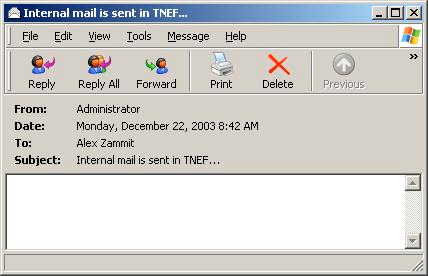
TroubleshootingProblems with viewing TNEF messagesHow do I extract the TNEF data (winmail.dat) using Outlook Express? Outlook Express has the bad habit of hiding TNEF data leaving no direct way of extracting it from the mail. This is what Outlook Express shows when opening mails containing TNEF:
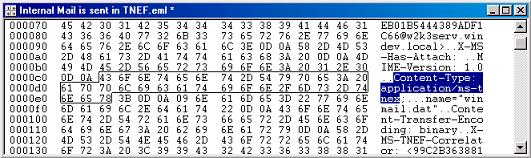
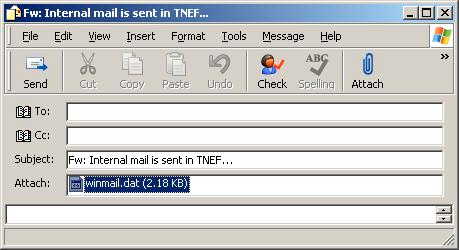
Follow this procedure carefully to work around this problem:
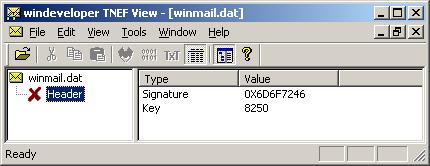
When opening a TNEF message I am unable to view any message properties. The viewer just shows the Headers node with a red cross next to it. What is wrong?
This happens when the TNEF file being opened is corrupted. Most commonly the corruption occurs on extracting TNEF from mime mails, this is a bit tricky with Outlook Express. Try opening different TNEF files and see whether the problem is specific to a single winmail.dat or to all TNEF. If you are not convinced a TNEF file is corrupted, mail this to support@windeveloper.com (check 'Feedback and Support' for more details).
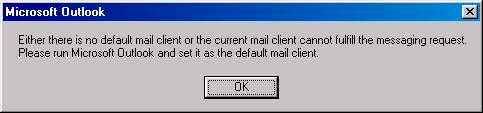
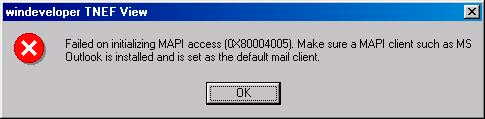
Problems with viewing Outlook *.msg filesI am unable to open MS Outlook messages with the viewer. When attempting to open a message the following dialogs are shown. What is the problem?
Check the following:
|